Activity Messenger Help Center
Accept online donations
Collect contributions with a donation form or add a donation block to a payment form. Decide what amounts to accept, which donor information you need and whether to show a fundraising goal. Configure receipts separately; creating a form does not by itself establish eligibility to issue an official tax receipt.
Creating a donation form
Go to the Create section to start a new form. You can design your form from scratch or use an existing template, such as a fundraising template.
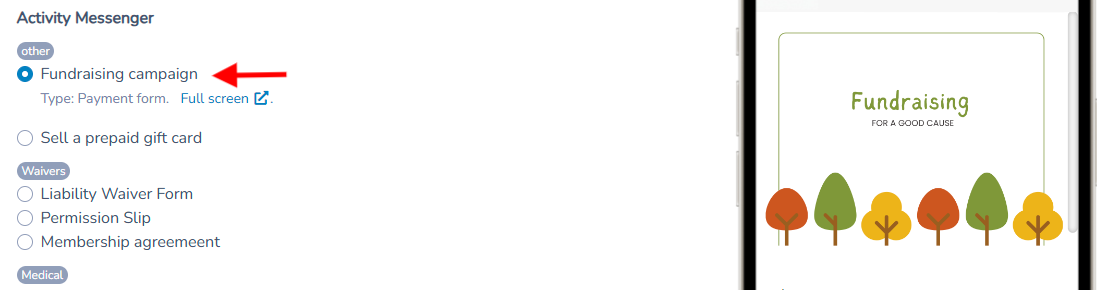
Write an introductory text to explain the objective of the fundraising or donations.
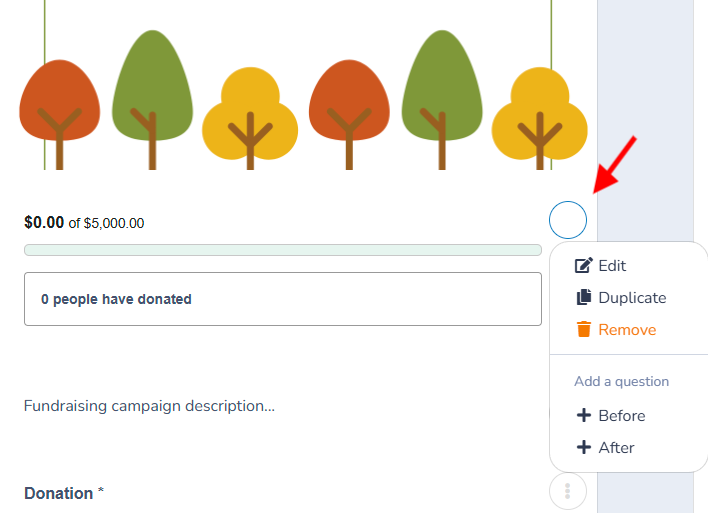
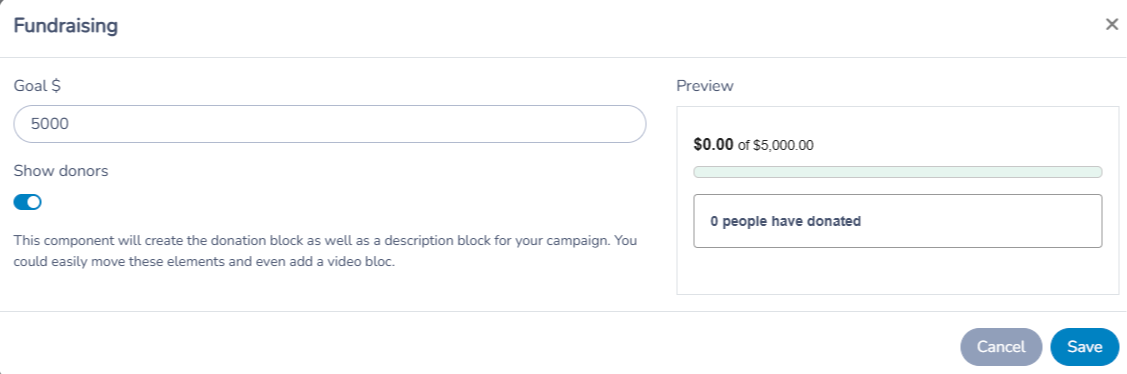
Set a fundraising goal. Donors can choose whether to display their names or remain anonymous only when the form includes a fundraising question; add that question if you want to offer donor anonymity. Donation messages are also available only on the fundraising question.
Configure the donations
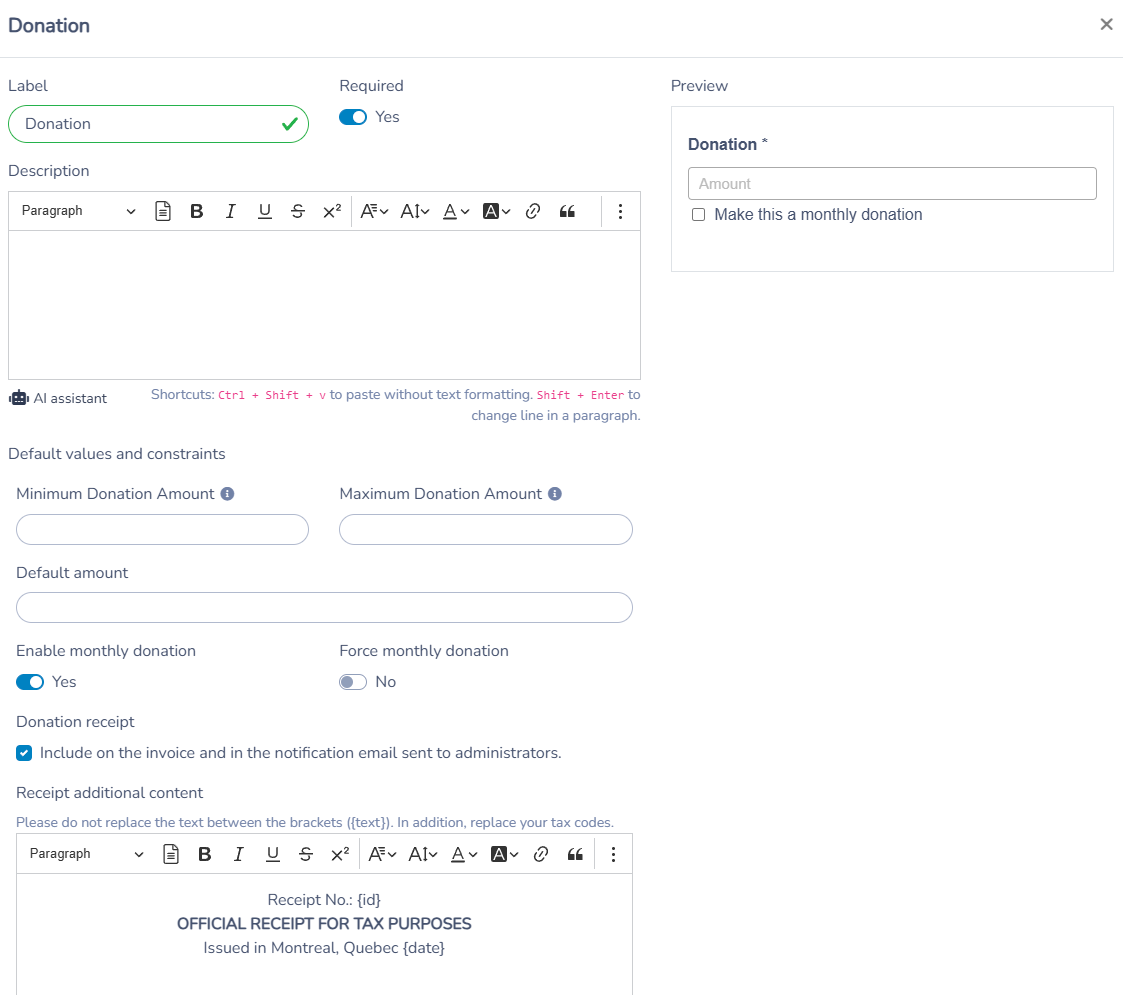
Donation Amount: Set a minimum or maximum amount for donations. You can also offer the option for monthly donations.
Receipts for a donation question: In the donation question settings, enable Include on the invoice and in the notification email sent to administrators to include receipt content. This reveals the Receipt additional content editor. Enter your organization's registration number in the receipt text where appropriate—for example, replace the xxxxxxxxx placeholder shown after “Tax ID” in the default text. There is no separate registration-number field in these settings. Keep the receipt placeholders in braces, such as {id}, {date}, {name} and {amount}, so they can be filled in for each receipt. Review the complete text before using it.
Optional donation at the end of a form: This is a separate donation workflow from adding a donation question. The receipt-content instructions above apply to a donation question; use the optional-donation setting's own configuration when managing that workflow.
To add your charity registration number to receipts for optional donations at the end of a form:
- Open the form in the editor and locate the payment section at the end of the form. Click its pencil button to open Payment options.
- Scroll to Enable tipping / donations. If optional donations are already enabled, leave them enabled; otherwise enable the option and select Donation mode.
- Turn on Donation receipt. The receipt text editor appears below the switch.
- In the receipt text, replace
xxxxxxxxxafter Tax ID with your charity registration number. If the receipt text has already been customized, add or update the registration number directly in that text. There is no separate registration-number field. - Keep placeholders such as
{id},{date},{name},{address},{type},{amount}and{signature}intact. Review the rest of the receipt text and, if needed, set the Signature image below the editor. - Click Save in Payment options.
You do not need to add a donation question to configure receipts for this optional donation.
Enable official donation receipts only when appropriate for your organization and the contribution. Entering a registration number does not establish eligibility to issue an official tax receipt.
Donor Information
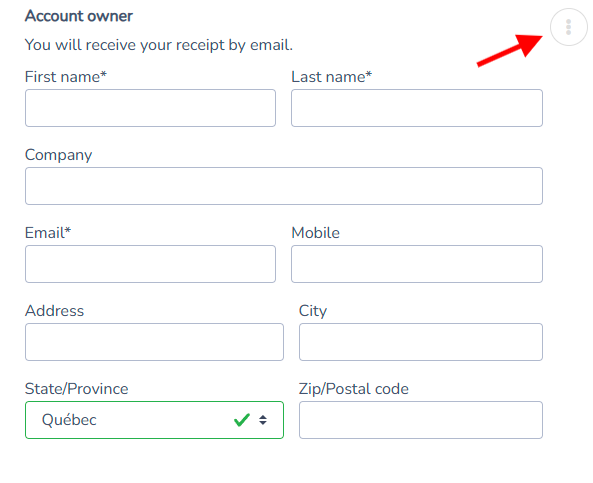
Customize the required fields for donors, such as name, address, email, and any other relevant information you need to collect. This helps ensure you can properly acknowledge their contributions and provide necessary tax receipts.
Additional options
Additional Questions: Include questions such as electronic signature, acceptance of donation terms, or subscription to a newsletter.
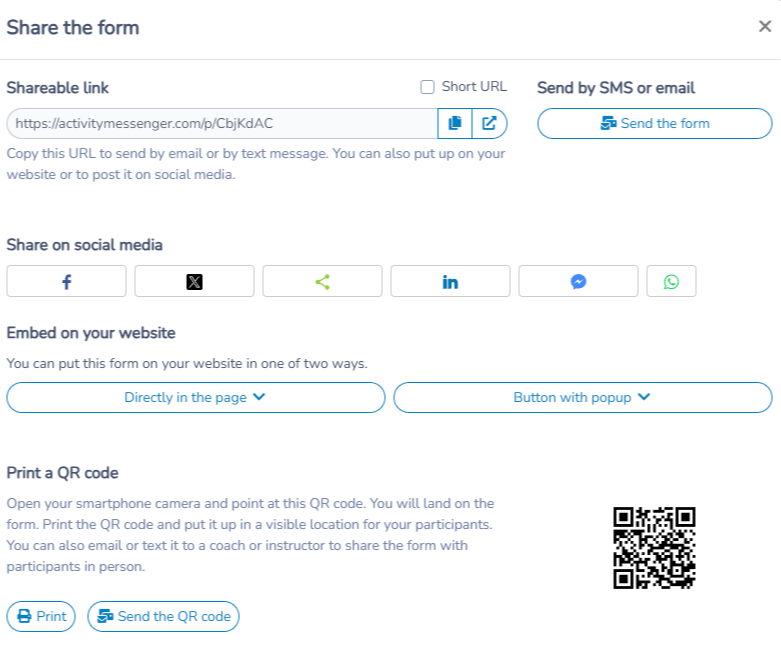
Share the Form: Share your form via a unique link or a QR code, or embed it directly on your website for easy access.
Create a fundraising campaign
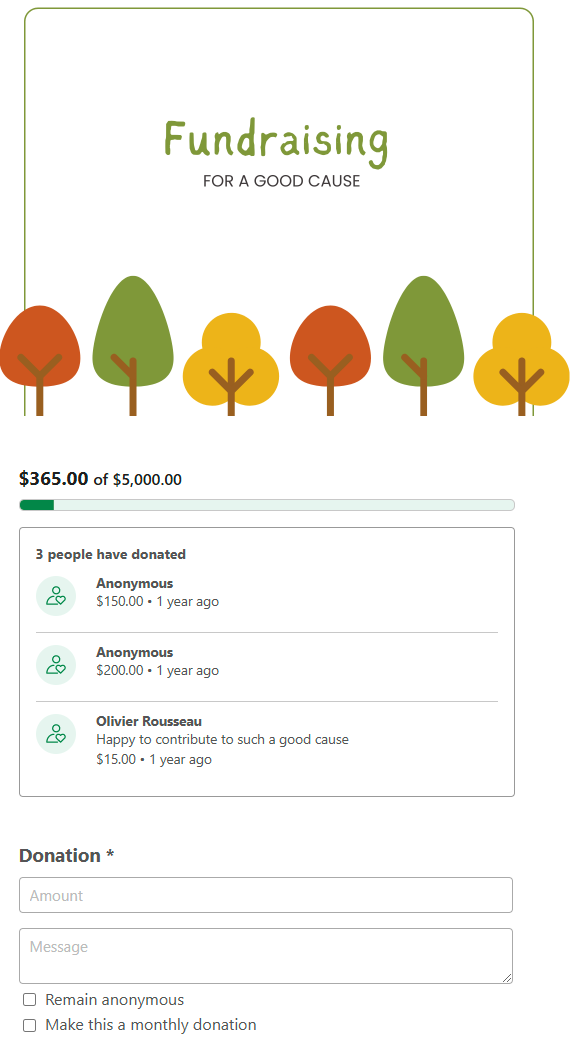
A fundraising campaign can create a sense of urgency and purpose around a specific cause, motivating people to take action and donate. By adding the fundraising block, you can create a thermometer to display donation progress, include a campaign message, and integrate a donation form. You can also use the platform's communication tools to automate your donation process, making it easier to engage with donors and keep them updated on your campaign's success.